


All you of might have thought about scheduling a shutdown after a while. There are several small application programs are available in net for the purpose. But I would suggest that you should not go for any external software for these kinds of simple tasks.
You can schedule a shutdown for your computer by following a few instructions. You can also create icons for a scheduled shutdown on your desktop if you frequently needs a scheduled shutdown. Read my article for creating a desktop shutdown icon.creating a desktop shutdown icon.
Follow these instructions for scheduling a shutdown.

You can schedule a shutdown for your computer by following a few instructions. You can also create icons for a scheduled shutdown on your desktop if you frequently needs a scheduled shutdown. Read my article for creating a desktop shutdown icon.creating a desktop shutdown icon.
Follow these instructions for scheduling a shutdown.
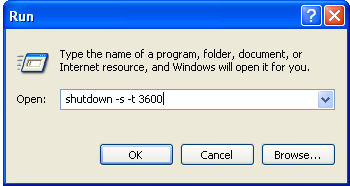
- Click Start menu(Win Menu)
- Click Run. If you are using Windows XP you'll see the Run icon in your start menu itself. If you are using Windows 7 type run on your start menu search and then you'll see the Run Icon.(Instead of Step 1 & 2 you can press Win Key + R to get the Run Command Wizard)
- In the Run Command Wizard type "shutdown -s -t time_in_seconds" without the quotes .Ex : shutdown -s -t 600, this will shutdown your computer after 10 Minutes.
- Click OK



0 comments:
Post a Comment